From: http://www.gal-systems.com/2011/07/convert-coordinates-between-web.html
Convert coordinates from Web Mercator (102100/3857) to WGS84 Geog (4326) and vice versa you can use these short functions (taken from Esri):
Monday, September 3, 2012

Thursday, July 26, 2012
Stripping special characters from SQL text
Reposting only to keep this from disappearing. Simple redundancy and I do not claim any part of this work as my known.
This is a repost from Sean McWherter's blog.
Excerpt from his blog:
Was looking for a better solution than a mile long REPLACE statement, found this. Originally written by Christian d’Heureuse, modified slightly by me. Removes all characters except: 0-9, a-z, A-Z, and spaces (remove “or @c = 32” if you want to also remove spaces).
Here is my usage. Only added fx_ to function name.
CREATE function dbo.fx_RemoveSpecialChars (@s varchar(256)) returns varchar(256)
   with schemabinding
begin
   if @s is null
      return null
   declare @s2 varchar(256)
   set @s2 = ''
   declare @l int
   set @l = len(@s)
   declare @p int
   set @p = 1
   while @p <= @l begin
      declare @c int
      set @c = ascii(substring(@s, @p, 1))
      if @c between 48 and 57 or @c between 65 and 90 or @c between 97 and 122 or @c = 32
         set @s2 = @s2 + char(@c)
      set @p = @p + 1
      end
   if len(@s2) = 0
      return null
   return @s2
   end
Wednesday, July 18, 2012
What do to if Google tags your blogger blog with a Malware warning
So yesterday, I discovered that Google had tagged my Digital Rockhound's site.
So I used Google WebMaster's tools and verified that my site was clean.
I used this site http://www.
Turns out I did.
I used a Google site search to help narrow where the links were. I had two links in a link gadget to the offending site. Simply removed them.
Then, I used WebMaster's tools a requested a reindex of my site. Good news here is that the links were at root level so the indexing was fast.
After Google re-indexed my site, no more scary malware warnings.
So I used Google WebMaster's tools and verified that my site was clean.
I used this site http://www.
Turns out I did.
I used a Google site search to help narrow where the links were. I had two links in a link gadget to the offending site. Simply removed them.
Then, I used WebMaster's tools a requested a reindex of my site. Good news here is that the links were at root level so the indexing was fast.
After Google re-indexed my site, no more scary malware warnings.
Thursday, July 12, 2012
SQL 2005/2008 Max(bit)
I'm certain it was possible to Max(bit) in SQL 2000 but that changed in SQL 2005/2008.
 SELECT Max(Col1+0)
   FROM SomeTable
Monday, July 9, 2012
Displaying a public key for an assembly.
This was way harder that it needs to be....
Use sn.exe with -Tp argument. However, to make this useful instead of just seeing it in cmd windows,
Follow the steps in this article: http://goo.gl/lFx1B
Use the following path for sn.exe:
For me on a Windows 7 64-bit using VS2010, the path to sn.exe was
Related stackoverflow link :http://stackoverflow.com/a/1123831/44597
Did this so I could attempt to unit test a MVC application that is strongly signed.

Use sn.exe with -Tp argument. However, to make this useful instead of just seeing it in cmd windows,
Follow the steps in this article: http://goo.gl/lFx1B
Use the following path for sn.exe:
For me on a Windows 7 64-bit using VS2010, the path to sn.exe was
C:\Program Files (x86)\Microsoft SDKs\Windows\v7.0A\Bin\sn.exe
Related stackoverflow link :http://stackoverflow.com/a/1123831/44597
Did this so I could attempt to unit test a MVC application that is strongly signed.
ASP.NET MVC - How to Unit Test an Action Method which returns JsonResult?
WebPart Tip: How to quickly view the public key for an assembly in the output window
I saw this handy little helper function being used on a MOSS screencast by Todd Bleeker and decided to figure out how he did it :). Basically it allows you to view the public key token of an assembly from within Visual Studio's output window, which saves time when you need to grab the key for use with the safe control entries in the web.config for example.
First step, fire up your copy of Visual Studio 2005 and open up a webpart class library project. Then from the Tools menu select External Tools. This will bring up the following dialog:
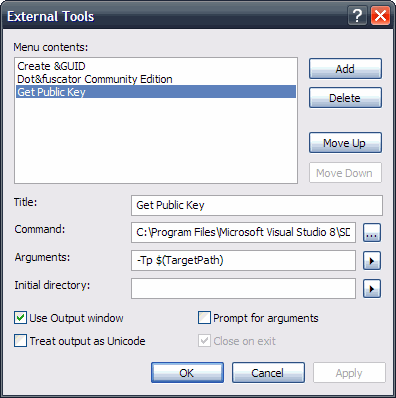
From the options, click Add and then give your utility a title. Now all we're doing here is essentially grabbing the output from the sn.exe command, so you will need to provide the path to your local sn.exe file. Mine was located in the following folder:
C:\Program Files\Microsoft Visual Studio 8\SDK\v2.0\Bin\sn.exe
Now, just like if we were running the strong name utility from the command line, we're going to need to pass in the correct arguments. Firstly we'll need to pass the -Tp argument, as we want to get the token for the public key, together with the public key itself. Then we need to specify the target assembly, which can be done by clicking on the button to the right of the Arguments field and selecting 'Target Path'. This basically gets the full qualified path to item which is being built, in our case a webpart assembly. Lastly just tick the 'Use Output Window' checkbox and then click ok and you're good to go :)
The new utility you've just created should now show up in the Tools menu, you can go ahead and click it and you should now see the output window popup with the details of the public key. This is a really nice feature of Visual Studio and I'm sure this can be tailored for many other uses.
Subscribe to:
Posts (Atom)