Search This Blog

Showing posts with label VS2010. Show all posts

Monday, July 9, 2012

Displaying a public key for an assembly.

This was way harder that it needs to be....

Use sn.exe with -Tp argument.  However,  to make this useful instead of just seeing it in cmd windows,
Follow the steps in this article: http://goo.gl/lFx1B

Use the following path for sn.exe:

For me on a Windows 7 64-bit using VS2010, the path to sn.exe was C:\Program Files (x86)\Microsoft SDKs\Windows\v7.0A\Bin\sn.exe

Related stackoverflow link :http://stackoverflow.com/a/1123831/44597

Did this so I could attempt to unit test a MVC application that is strongly signed.


ASP.NET MVC - How to Unit Test an Action Method which returns JsonResult?


WebPart Tip: How to quickly view the public key for an assembly in the output window

I saw this handy little helper function being used on a MOSS screencast by Todd Bleeker and decided to figure out how he did it :). Basically it allows you to view the public key token of an assembly from within Visual Studio's output window, which saves time when you need to grab the key for use with the safe control entries in the web.config for example.
First step, fire up your copy of Visual Studio 2005 and open up a webpart class library project. Then from the Tools menu select External Tools. This will bring up the following dialog:
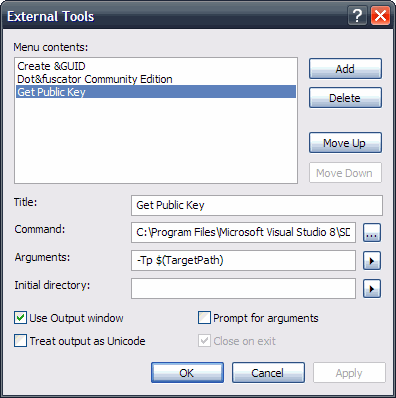
 
From the options, click Add and then give your utility a title. Now all we're doing here is essentially grabbing the output from the sn.exe command, so you will need to provide the path to your local sn.exe file. Mine was located in the following folder:
C:\Program Files\Microsoft Visual Studio 8\SDK\v2.0\Bin\sn.exe 
Now, just like if we were running the strong name utility from the command line, we're going to need to pass in the correct arguments. Firstly we'll need to pass the -Tp argument, as we want to get the token for the public key, together with the public key itself. Then we need to specify the target assembly, which can be done by clicking on the button to the right of the Arguments field and selecting 'Target Path'. This basically gets the full qualified path to item which is being built, in our case a webpart assembly. Lastly just tick the 'Use Output Window' checkbox and then click ok and you're good to go :)
The new utility you've just created should now show up in the Tools menu, you can go ahead and click it and you should now see the output window popup with the details of the public key. This is a really nice feature of Visual Studio and I'm sure this can be tailored for many other uses.

Saturday, July 7, 2012

Visual Studio build fails: unable to copy exe-file from obj\debug to bin\debug

Here is an odd bug with an even odder workaround solution.

In a large C# solution, I have numerous projects and some COM wrapped .net controls.


After running the solution, a rebuild might fail with DLL cannot be copied to \bin locked by another process. It was not happening everytime so I thought may one of my components were not getting disposed correctly.  The frequency of occurrence jump 10x after I moved to Windows 7 64bit and VS 2010.  A GIS map control assembly always failed to build after it was run.  Again, first this I thought was my implementation must incorrect.  After some refactoring,I still have the problem, then I found this question on stackoverflow.


The workaround eliminated the issue for me.  


It would be easy to blame VS 2010 or Windows 7 but given the complexity of the two products, little oddities are par for the course.  Just glad for Stackoverflow!


Visual Studio build fails: unable to copy exe-file from obj\debug to bin\debug


Seems it is caused by using default assembly version numbers.

This same problem was discussed on Stack Overflow in this question: http://stackoverflow.com/q/2895898/310001

The following answer was proven to be one possible workaround:
http://stackoverflow.com/questions/2895898/visual-studio-build-fails-unable-to-copy-exe-file-from-obj-debug-to-bin-debug/2994502#2994502

I have verified both the bug and the above mentioned workaround in the attached project. In short, what to do to avoid this error is:

1. Open AssemblyInfo.cs in the WindowsService1 project
2. Change the line [assembly: AssemblyVersion("1.0.*")] to [assembly: AssemblyVersion("1.0.0")]
3. Save All solution files
4. Clean solution
5. Using a file browser, go into WindowsService1\bin\Debug\ and rename the locked file Solution6.Module.dll (e.g. to Solution6.Module1.dll - you must use rename, because you won't be allowed to delete it)
6. Go back into Visual Studio
7. Rebuild Solution twice
8. If the error still happens, go to step 4 and repeat again (I had to repeat once - it makes no sense, and I have no idea why, but it works)

When you get this far, everything should now be OK. You can rebuild as often you need to without any problems. Yes, you'll have to take care of incrementing AssemblyVersion manually, but it is a tiny tiny price to pay compared to many of the other "hacks" out there to work around this.


So in short: avoid using default Revision/Build numbers in AssemblyVersion!

Source:VSIP


Monday, November 7, 2011

VS2010 + MVC 2.0 + Javascript != Awesome

Okay, this is not a formula for success.
1) I cannot debug javascript by putting a VS2010 break point due to a bug in the MVC 2/3 that Microsoft admits is there but will not fix.  Has something to do with the fact VS2010 cannot debug silverlight and javascript at the same time and VS2010 mis-identifies what is running with MVC 2/3 framework.  That's just great...
2) Back up plan.... the ever useful alert("I'm hitting this face break point");
3) Plus robust exception handling native to javascript.
4) My love for case sensitive coding scripting languages.

Is Javascript the best we can do for a web UI language?

Given a choice, I'd pick python.