Search This Blog

Wednesday, January 5, 2022

How to connect Google Home to PC and use it as a Bluetooth speaker?

https://mrnoob.net/how-to-connect-google-home-to-pc/


From article:

Key point: In Google Home on smart phone, find device audio properities, audio, Enable Pairing mode
 
In Windows 10, goto bluetooth devices, click on new devices and it Google assistant will appear in the list.


Saturday, December 18, 2021

Steps to create Rescue ISO using Macrium Reflect Free edition


Steps to create Rescue ISO

  • Click Rescue

  • Follow prompts to select ISO

  • Click build

  • After completed, file is c:\MacriumRescue.iso

  • I copied this file to NAS as a backup.

Macrium reflect - Useful free backup /restore / clone tool

Recently, I had a external HDD fail at the house and data was lost so I am taking another stab at actually trying to maintain backups. 

Here is what I recommend:
  • Find free software to perform the backup / restore /clone / image.
    • I have bought software in the past it always seems like wasted money.
    • I selected Macrium Reflect Free
  • I decided to clone (instead of backup) to a HDD in a external USB cradle.
    • Why? I am finding external USB hard drives suck and are too expensive for what they are.
    • Buy an internal HDD and use a USB HDD cradle like this:


  • Steps to clone using 
  • Registered  Macrium reflect - Free version

  • Received code in email

  • Installed software and applied code 


  • Used HDD in USB cradle and connected to machine

  • Started Macrium reflect - Free version

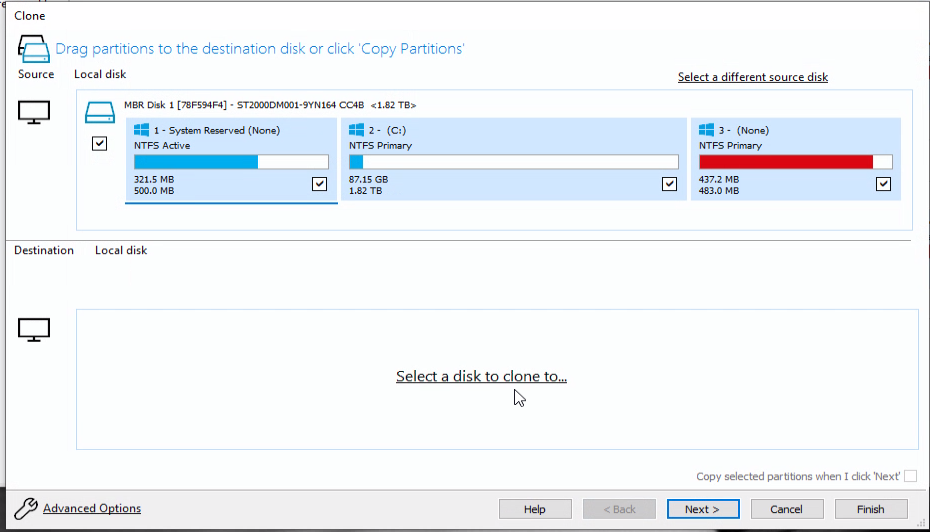
  • Click clone this drive:

  • Select a disk to clone to

  • Select HDD in USB cradle

  • Follow next select prompts, select to overwrite volume data

  • After process is completed, (for me machine it was ~45 min 1 TB drive over USB3 port), reboot the computer and force it to boot from USB drive. Booting the computer will be much slower but you will know for certain in your cloning task was successful without actually swapping drives.

  • Now, I know I have functional clone on a HDD and to recover this machine all I need to do is swap drives.


Monday, April 13, 2020

.netFramework Version checker for NSIS

https://github.com/ReVolly/NsisDotNetChecker

All Users

  1. Copy DotNetChecker.dll to NSIS plugins directory (usually C:\Program Files\Nsis\Plugins\ or C:\Program Files (x86)\Nsis\Plugins\x86-ansi)
  2. Copy DotNetChecker.nsh to NSIS Include directory C:\Program Files (x86)\NSIS\Include
  3. Add to your installer project DotNetChecker.nsh file
  4. Reference DotNetChecker.nsh in your main NSI file like this: !include "DotNetChecker.nsh"
  5. Insert macros with the version of required .NET framework.

Local

  1. Copy the whole project in to the same folder as your NSIS Script.
  2. Refrence the Plugin DLL like this: !addplugindir "NsisDotNetChecker\bin"
  3. Reference DotNetChecker.nsh in your main NSI file like this: !include "NsisDotNetChecker\nsis\DotNetChecker.nsh"

In script

  1.  Added !include DotNetChecker.nsh at the top of the script.
  2.  Added this line into installer section:   
  3. !insertmacro CheckNetFramework 10 - checks for .netframework 1.0
  4. !insertmacro CheckNetFramework 461 - checks for .netframework 4.61
  5. !insertmacro CheckNetFramework 472 - checks for .netframework 4.72
  6. !insertmacro CheckNetFramework 40Client - checks for .netframework 4.0 client
  7. !insertmacro CheckNetFramework 40Full - checks for .netframework 4.0 Full

Thursday, April 2, 2020

Resolve: Referenced account is currently locked out and may not be logged into


Published on Jan 27, 2018
  1. Press Windows Key + R and type secpol.msc in Run dialog box and click OK.
  2. Go to Security Settings - Account Policies - Account Lockout Policy.
  3. Double-click on Account lockout threshold policy.
  4. set the preset value to 0. Click OK. 
  5. Reboot.
Jan 27, 2018

Friday, March 27, 2020

Trying my hand at Mint Linux

Mint Linux 19.3


Recently, I converted an older Windows 10 workstation that had become crippled under the weight of the OS to Mint Linux 19.3.  Installing the OS was pretty straightward:
 - Download 64bit Mint Linux OS installer to a bootable USB stick
 - Rebooted the computer and set USB stick as a bootable option
 - Rebooted and followed steps in the installer.
 - Rebooted again w/o usb stick and I'm running Linux.  Now what?


Downloaded and installed Plex Media Server.

Had to mount NAS file shares so Plex server access them.
This was abit tricky.
 - Had to edit /etc/fstab file.  Must do this as admin or root
 - Open command prompt: sudo xed /etc/fstab
- This command opens XED text editor in root mode to allow file to edited.
After much research, I found this command allow my Zyxel NAS 326 video share to be mapped to the workstation.


NOTE: I used this pattern:

Created a local folder /home/gary/Shares/FileShare (in linux)
Mapped   //192.168.0.31/public  =>   /home/gary/Shares/FileShar
//192.168.0.31/public
username={{username}},password={{password}},iocharset=utf8,sec=ntlm  0  0


//NAS326-10TB.local/video /home/garykindel/Media/video cifs credentials=/home/garykindel/Media/plex.cred,guest,rw,uid=1000,gid=1000,x-systemd.automount,nounix,iocharset=utf8,file_mode=0777,dir_mode=0777 0


//NAS326-10TB.local/video = UNC path of NAS share

home/garykindel/Media/video - location where share will be mounted to.

cifs - protocal to access share

credentials=/home/garykindel/Media/plex.cred - points to text file comtaining username=? and password=?

Rest of the parameters found by trial and error needed.  Lines ends in a 0

IMPORTANT NO OTHER SPACES IN LINE IS ALLOWABLE!

Again in the command prompt, to load allow configured shares:
cmd:> sudo mount -all


Thursday, January 10, 2019

Oddest error in Windows 10 Pro: windows 10 pro spotify error data area passed is too small caused by SQL 2017 enabled with filestream

https://answers.microsoft.com/en-us/windows/forum/all/windows-10-store-the-data-area-passed-to-a-system/0b727e53-d562-4145-b458-90c8bbe25047?auth=1


https://blogs.msdn.microsoft.com/sql_server_team/centennial-appsdesktop-bridge-sql-server-and-
error-the-data-area-passed-to-a-system-call-is-too-small/

I had tried to install Spotify and Skype on my new Windows 10 pro laptop and this error occurred:

  Data area passed is too small

From first article:

I suspect you may have a SQL database using filestream. It looks like a SQL bug is causing Windows Store apps using Centennial to crash with this error. For me this includes Ubuntu and WhatsApp. For more info check out the SQL Tiger blog where it is discussed. A fix is out for SQL 2017 but still waiting for older versions.

From second article:

Scenario:

1. Install Windows 10 1607 or later on the system.
2. Install SQL Server and enable the SQL Filestream feature (Ref: https://docs.microsoft.com/en-us/sql/relational-databases/blob/enable-and-configure-filestream )
3. Create a database with a filestream container. Ensure that container is hosted on the drive which also hosts the Centennial applications.
4. Install any Centennial application such as MS Office Preview apps or Ubuntu Linux from the Microsoft Store application
5. Launching any Centennial application fails with the following error
Fix: Install latest SQL 2017 update.

Friday, January 4, 2019

Windows 10 pro workstation missing OneDrive integrated folder in File Explorer

Found the solution on https://superuser.com

BTW, Love their URL format

https://superuser.com/questions/1147030/onedrive-not-integrated-with-windows-explorer-on-windows-10-enterprise-1607

Run OneDriveSetup.exe  as Administrator
or OneDrive.exe as Administrator


Tuesday, October 4, 2016

HOWTO list local administrators on the Windows commandline

net localgroup administrators

Sunday, September 11, 2016

Install a local Minecraft server

Here are the steps I used to setup a local minecraft server for my kids.
Note: minecraft server is free but requires a registered minecraft user account ~$40.00/person.

Read this guide: http://minecraft.gamepedia.com/Tutorials/Setting_up_a_server

(ps note to self: Check google drive for backup of mine craft server settings for 1.8.3)

1) Download minecraft server from https://minecraft.net/en/download/server
2) Install JAVA as needed
3) Configure server properties:
4) Create users who are owners in ops.json
    Use this tool to get uuid from user name http://minecraft-techworld.com/uuid-lookup-tool
[
  {
    "uuid": "",
    "name": "UserName1",
    "level": 4
  },
  {
    "uuid": "",
    "name": "UserName2",
    "level": 4
  }
]
5) Run minecradrserver.exe or  minecradrserver.jar file.
6) Open Firewall for Minecraft (if you want the share the server with those outside your local home network. otherwise skip this.)
    see http://gaming.stackexchange.com/questions/205188/how-do-i-add-minecraft-as-a-firewall-exception
7)

Thursday, February 18, 2016

Fixing a long annoying issue Plex + FireFly + DVD Order


Download DVDOrderAgent.bundle from https://github.com/HuggableSquare/DVDOrderAgent.bundle

Follow steps in this post
1) Stop plex server.
2) Copy DVDOrderAgent.bundle,zip to plug in folder
    Path ~ C:\Users\\AppData\Local\Plex Media Server\Plug-ins
3) Extract  DVDOrderAgent.bundle,zip  to here
    Delete zip file
4) Start Plex server
5) In Plex web app,  go to a TV show - not a season page, the main page for the show - click the ellipsis (...) on the left and select "Fix Incorrect Match". Click on the "Auto Match" drop-down menu, and select "TheTVDBdvdorder". The metadata will be updated with the correct alternate order.
Episode order is fixed!!!

Monday, February 8, 2016

Useful Batch Files


Batch File Copy  full file names for all files in folder and sub folders to text file.

(replace &gt with )


dir C:\Data\Documents\*.* /b /s /a:-D >  C:\Documents.txt


Batch File: Copy just file name of files in folder to text file:
(replace &gt with )


dir C:\Data\Documents\*.* /o-n-d /b  >  C:\Files.txt

Some Useful powershell scripts


Power shell scripts:

#1 Read file names from csv file using pipe delimiter and copy files to with new name to new destination

C:\Temp\finals.csv - csv file
FileName - source file
NewFileName - new name and destination for file

$csv = Import-Csv L:\DataMigration\CalRad\Reports_finals.csv '|' -Header FileName,NewFileName
foreach ($line in $csv) {    If ((Test-Path $line.FileName)){ Copy-Item -path $line.FileName -Destination $line.NewFileName } }


#2  Get all of the pdf full file paths
      execute application using full file path as a command argument.


  $items = Get-ChildItem "L:\DataMigration\CalRad\LegacyData\LegacyReports\Scanned_Docs" -Filter *.pdf 
  foreach ($item in $items) { L:\DataMigration\CalRad\PDFToImage\PDFToImages.exe $item.FullName 140}


#3) import csv file pipe delimited with 4 columns
      copy file to new location using 3rd parameter as source location and 4th parameters as destination path and file name.


$csv = Import-Csv L:\DataMigration\CalRad\LegacyData\LegacyReports\Scanned_Docs.csv '|' -Header Accession,Type,FileName,NewFileName
   foreach ($line in $csv) {    If ((Test-Path $line.FileName)){ Copy-Item -path $line.FileName -Destination $line.NewFileName } }

Tuesday, December 8, 2015

Unexpected results Min() Max() results from SELECT TOP 100 sql statement

Testing a solution to find min() max() of 100 rows returned from a query provided some interesting results.

SELECT  min(x.radar_queue_key), max(x.radar_queue_key)
FROM (SELECT TOP 100 radar_queue_key FROM z_radar_queue WHERE radar_group_Code='SFV OTS' ORDER BY radar_queue_key asc) as x

Results:867 966

SELECT  min(x.radar_queue_key), max(x.radar_queue_key)
FROM (SELECT TOP 100 radar_queue_key FROM z_radar_queue WHERE radar_group_Code='SFV OTS') as x

Results:867 1879

SELECT  min(radar_queue_key), max(radar_queue_key)
FROM  z_radar_queue 
WHERE radar_group_Code='SFV OTS'

867 1879


What is interesting is that actual Min() =867 and actual max() =966 for the Top 100 rows.

Both of these queries return exactly the same rows in exactly the same order (even when flushing data cache) because radar_queue_key is the primary key on the table.


SELECT TOP 100 radar_queue_key FROM z_radar_queue WHERE radar_group_Code='SFV OTS' ORDER BY radar_queue_key asc

SELECT TOP 100 radar_queue_key FROM z_radar_queue WHERE radar_group_Code='SFV OTS'

Value of 1879 does not appear in either result set. The execution is completely different if the sql statements are used as a subquery.

Lesson here is always use an order by clause when fetching rows for aggregation + TOP xxxx

Saturday, October 31, 2015

Setting up SQLite and EF6

Here is something that is more difficult than it should be.

My answer on StackOverflow:

My environment:

VS2013 Pro
Entity Framework 6: version 6.1.3
Sqlite .net library: System.Data.SQLite versions: 1.093 - 1.095

Do not use Nuget Manager to download 


Monday, October 26, 2015

How to efficently update WPF MainWindow from an async task

Is this an acceptable approach to update WPF MainWindow from an async task, using events thrown from a public static class?
In MainWindow.cs, I subscribe to UI.TaskCompleted event In UI.cs, I subscribe to AsyncTaskActions.TaskCompleted event.
Using this pattern, AsyncTaskActions.TaskCompleted is raised with a async task is completed. UI catch the event and raise UI.TaskCompleted. This way, the event is catch in MainWindow code where I can use Displacher.Invoke to refresh the displayed page. The end result is I get a page refresh when a task is completed and the task still runs asychronously.
Application design summary:
MainWindow: main window which can have several different page classes in content area within the main window.
Common.cs public static class contains a number of common methods through the UI in the application.
AsyncTaskActions.cs - class with a number of async common methods (ie download file)


Tuesday, August 25, 2015

Useful sqlite system queries


List tables and indexes in SQlite database:

SELECT * FROM sqlite_master


List columns for a table:

pragma table_info()

Monday, July 27, 2015

Amazon File Hosting

Starting research again for a proper secured download application site.

Starting here:

https://css-tricks.com/how-to-set-up-and-host-a-publicly-accessible-file-on-amazon-s3-simple-storage-service/


Saturday, July 4, 2015

NSIS 3.0b1 setup for DRC

Installing NSIS on HP laptop with the following steps

Files in SVN  ..,/svn/DRC_Installer/References

http://nsis.sourceforge.net/Main_Page
http://www.spaceblue.com/products/venis/
My copy of Venis

1) Install nsis-3.0b1-setup.exe
2) Install Venis Editor
3) Install Registry.zip Addin  (Optional)
    a) Within Registry.zip copy:
          - Desktop\example  => c:\Program Files(x86)\NSIS\Examples\
          - Desktop\Include => c:\Program Files(x86)\NSIS\Include\
          - Desktop\Plugin => c:\Program Files(x86)\NSIS\Plugins\
4) Copy ZipDLL.dll to  c:\Program Files(x86)\NSIS\Plugins\x86-ansi\
5) Copy nsProcess.nsh c:\Program Files(x86)\NSIS\Include\
6) Copy ZipDLL.dll to C:\Program Files (x86)\NSIS\Plugins\x86-ansi\


Thursday, November 20, 2014

Creating and installing Windows Service in a development enviroment.

I hadn't worked on a Windows Service in 4 years so I forgot some of the fun necessary to create a new Windows Service.

Useful References
SC.exe - http://technet.microsoft.com/en-us/library/cc754599.aspx

Using SC.exe 

Settings Description for Service:


Steps to create a new Windows service
(Using Windows 7 Pro and Visual Studio 2013 Ultimate)

  • Add new project to solution
  • Select C# Windows, Windows Service template
  • Name project SoftwareUpdaterService and create.
      Note: VS 2013 template creates the necessary service base code to be a functional service:

     public Service1()
        {
            InitializeComponent();
        }

        protected override void OnStart(string[] args)
        {
        }

        protected override void OnStop()
        {
        }


  •  Build project and confirmed ..\SoftwareUpdaterService\bin\Debug\ SoftwareUpdaterService.exe
  • (I forgot this step) use SC to install the service
  • Open VS 2013 command prompt, switch to  bin\debug folder
  • Run this command:
SC create MergeSoftwareUpdater displayname= "Merge Healthcare Software Updater Service" binpath= "C:\CAP30\Tools\Software Updater Service\SoftwareUpdater\SoftwareUpdaterService\bin\Debug\SoftwareUpdaterService.exe" start= auto


  Creates registry entry for service:
HKEY_LOCAL_MACHINE\System\CurrentControlSet\Services

MergeSoftwareUpdater <= service key.


  • Open Services manager and service should appear.
  • Added Installer class to service project (lifted it from an existing project)
  • Now InstallUtil.exe will install the project as a service.
     InstallUtil.exe SoftwareUpdaterService.exe
(Added) using System.Net;
              using System.ServiceProcess;
        private void InitializeComponent()
        {
            this.serviceProcessInstaller = new System.ServiceProcess.ServiceProcessInstaller();
            this.serviceInstaller = new System.ServiceProcess.ServiceInstaller();
            // 
            // deliveryServiceProcessInstaller
            // 
            this.serviceProcessInstaller.Password = null;
            this.serviceProcessInstaller.Username = null;
            // 
            // deliveryServiceInstaller
            // 
            this.serviceInstaller.ServiceName = "Merge Healthcare Software Updater Service";
            this.serviceInstaller.Description = "Allows software updates to be scheduled and run automatically.";
            this.serviceInstaller.StartType = System.ServiceProcess.ServiceStartMode.Automatic;
            // 
            // ProjectInstaller
            // 
            this.Installers.AddRange(new System.Configuration.Install.Installer[] {
                                                                                      this.serviceProcessInstaller,
                                                                                      this.serviceInstaller});
        }

        public override void Install(IDictionary stateSaver) 
        {                    
            if (Context.Parameters["user"] != null && Context.Parameters["user"].Length != 0 && Context.Parameters["password"].Length != 0 && Context.Parameters["password"] != null) 
            {
                string user = Context.Parameters["user"];
                // if the user starts with . then we want to replace that with the local machine's actual hostname
                if (user.StartsWith(".")) 
                {
                    user = Dns.GetHostName() + user.Substring(1, user.Length - 1);
                }
                serviceProcessInstaller.Username = user;
                serviceProcessInstaller.Password = Context.Parameters["password"];
                serviceProcessInstaller.Account = ServiceAccount.User;
            } 
            else 
            {
                serviceProcessInstaller.Account = ServiceAccount.LocalSystem;
            }
            
            base.Install(stateSaver);
        }